Data Lake Service (DLS)
This section provides guidance on defining and managing the settings for a source file, ensuring accurate and efficient data transfer from the landing zone to the database.
What you will learn about here:
Sources UI Configuration: A guide to configuring a source file via the Config UI. This includes defining the file structure (the data contract) and the settings that control how each delivery is archived and published.
Code Setup: The JSON source file definition and the API endpoint it is posted to, for when the UI is not the right route — automation, bulk changes, CI.
Technical Details: The technical specification of the DLS component: container setup, Python dependencies, and deployment and execution guidelines.
Each heading above is a tab at the top of the page, not a section you can scroll to. The table of contents and any deep link only reach the tab that is open, so switch tabs rather than searching the page.
- Sources UI Configuration
- Code Setup
- Technical Details
Configuring the sourcefile in the Config UI
The DLS → Sources page (/sourcefiles) defines and manages the settings for a source file: how an incoming delivery is interpreted, where it is archived, and how it is published to the trusted zone.
A Sources Guide button at the top of the page expands a short in-app summary of the same material.
Selecting a system and a source
Pick the system from the searchable dropdown, then the source within it. Add new system and Add new source create new entries.
Changes are held in a working copy until you press Save changes. The button states No changes to save while the form is clean, an Unsaved changes marker appears once you edit something, and the browser warns before you close the tab with unsaved work.
The action bar also carries Show JSON (the exact definition, with a download button), Schema Diagram (a visual view of the file structure) and Deactivate this source.
Adding a new source file
Add new source opens a dialog asking for the source file name, the file type, an optional file name pattern (leave empty to reuse the source file name) and an optional description.
A source file can also be created straight from an export: after saving an export definition on the INGEST → Exports page, the UI offers to create the matching source file with the name, file type and file name pattern already filled in.
The two tabs
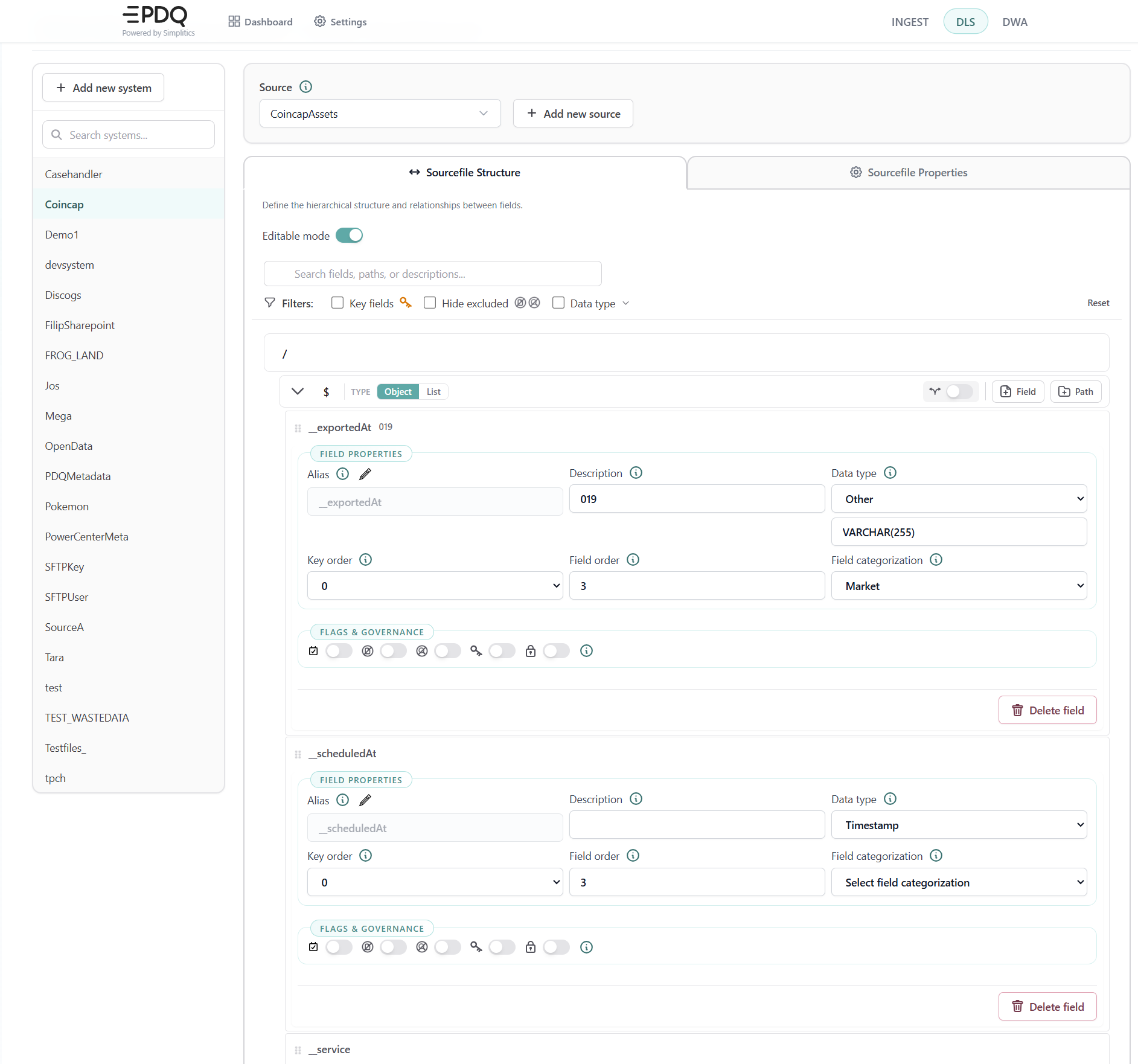
Sourcefile Structure defines the hierarchical structure of the file and the relationships between its fields — the data contract that downstream processes and profiling validate against.
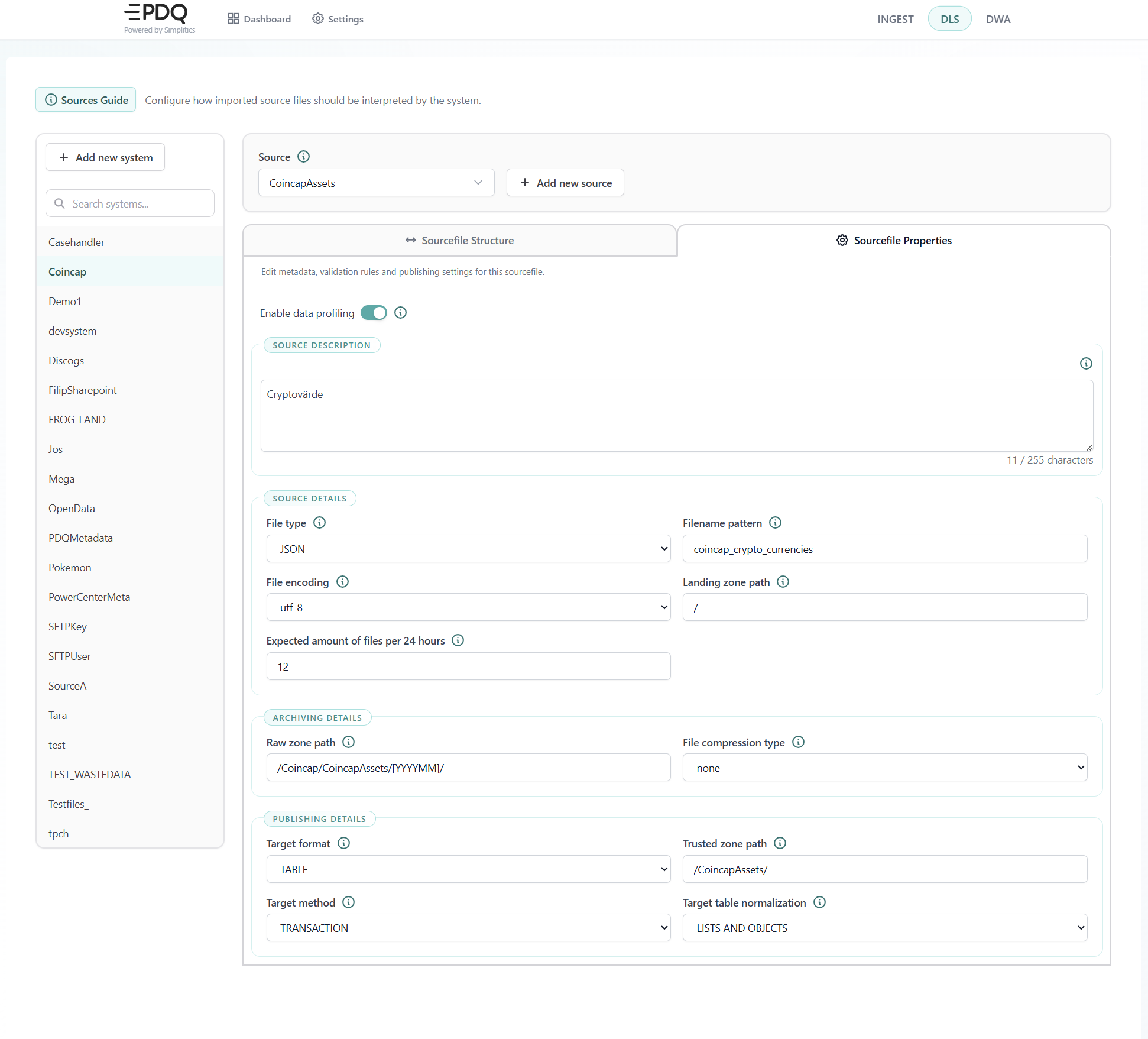
Sourcefile Properties holds the metadata and the archiving and publishing settings described below.
Sourcefile properties
- CSV — column-delimited text data.
- JSON — JSON-formatted text data.
- XML — XML-formatted text data.
- TABLE — the client database's native table format.
- ICEBERG — Iceberg table format.
- JSON — line-delimited JSON.
- APPEND — appends changes and new records to the target table. The method does not compare incoming data to existing records, so duplicate change records may occur.
- OVERWRITE — incoming data overwrites the existing data.
- TRANSACTION — appends all incoming data to the target table without any controls.
- CHANGES ONLY — appends changes and new records, comparing incoming data to the latest known change in the target table so no duplicate change records are added.
- LATEST VERSION — applies changes and new records while preserving only one version per primary key.
- NONE — the structure is published as it stands.
- LISTS — repeating lists are broken out into their own tables.
- LISTS AND OBJECTS — lists and nested objects are both broken out.
Enable data profiling (enableProfiler): Enables continuous checks and validation of incoming data against the data contract. It is recommended to keep this enabled, but it increases stored volume and uses compute, so it can be disabled if necessary.
Source description (description): Free text explaining the purpose and contents of the source file, up to 255 characters. The editor shows the character count.
Source details
File type (fileType): How to interpret the source data. Available options:
The Data Modifier is the component inside DLS that does the format work: it transforms JSON, CSV and XML into one common structure, so that whatever the delivery arrived as, it can be read through SQL downstream.
Filename pattern (filenamePattern): The unique representation of the source file data, used to identify all deliveries. Several different exports can be written into a single source file by sharing a pattern.
File encoding (fileEncoding): The character encoding used to read the delivered files. The list is served from platform settings; the defaults are utf-8 (supports all Unicode characters), utf-16, and windows-1252 (Western European, compatible with older Windows applications).
Landing zone path (landingZonePath): Traces the source file to a specific upload folder. Useful when several sources deliver data with similar or matching filename patterns, or when different credentials are used for the upload/landing bucket.
Expected amount of files per 24 hours (expectedAmount): The expected number of deliveries per 24 hours, used as a benchmark for whether a delivery is complete. The default is 0, meaning the file is not expected; otherwise a positive integer.
Archiving details
Raw zone path (rawZonePath): Where archived raw data is stored. Defaults to /<system>/<source>/[YYYY]/[MM]/[DD]/ when left empty. Dynamic formatting is applied from the delivery date: [YYYY] four-digit year, [YY] two-digit year, [MM] month, [DD] day, [HH] hour. These are UTC.
File compression type (fileCompressionType): gzip or none. Tells DLS whether to archive and process data compressed. New sources default to gzip.
File compression level (fileCompressionLevel): Shown when the type is gzip. 1 to 9, where 9 is the highest compression.
Publishing details
Target format (targetFormat): The format used when publishing data to the trusted zone. Regardless of the original fileType, the data is converted to:
Trusted zone path (trustedZonePath): Where published trusted data is stored. Defaults to /<system>/<source>/ when left empty. The same dynamic date formatting as the raw zone path applies.
Target method (targetMethod): How new data is written to the trusted zone path:
Target table normalisation (targetNormalization): How the source structure is normalised into target tables:
How long Trusted stays rerunnable
KEEPDATAINTRUSTEDFORDAYS sets how many days back Published can be rerun from without
reprocessing from Raw. The default is 3 days.
It is a performance setting, not a retention policy that clears out Trusted in general. Within the window, a Published rerun reads what is already in Trusted and is quick. Past the window, the same rerun has to go back to the Raw Archive and process forward again, which costs correspondingly more. The Publisher Trace page disables Restart for a file older than the window for exactly this reason, and points at DLS Trace instead.
Raising it buys cheaper reruns further back, at the cost of storage. Lowering it does the reverse. Nothing is lost either way: the Raw Archive is permanent.
How a field's type is decided
When a data contract is generated, a field's type is resolved across filekeys by preference:
Varchar > Decimal > Integer > Timestamp > Date > Time
The widest type wins, so a field that arrived as an integer in one delivery and as text in another is typed as text rather than failing the later delivery.
Sourcefile Structure
- Alias (
fieldAlias): the name used for the field downstream, when the source name is not the name you want in the target tables. - Description: free text carried into the generated documentation — and into the
COMMENTon the target column. - Data type: the declared type, for example
VARCHAR(255)orTimestamp. - Key order: the position of the field within the key.
0means the field is not part of the key. - Field order: the position of the field in the target table.
- Field categorisation: the business category the field belongs to.
- Flags & governance: per-field toggles controlling inclusion, exclusion, key membership and protection.
The Sourcefile Structure tab holds the data contract itself: the hierarchical structure of the source file and the properties of every field. Turn on Editable mode to change it.
Each field carries:
Use the filters above the list to show key fields only, hide excluded fields, or narrow the list by data type.
What you set here travels to the target. The data contract is not documentation about the pipeline — it is the input the generator uses to build the tables. The description becomes a column comment, the key order becomes a primary key on the publish table and a unique constraint on the core table, the field categorisation becomes a category tag on the target column, and a field flagged sensitive gets a sensitivity tag and, on platforms that support it, a column mask. On a hierarchical source, the classification of a business key follows that key onto every normalised child table that inherits it. See What lands in the target environment.
Note that fieldKey and path are case sensitive and must match the source files exactly.
Ingesting new data and preparing it for the trusted zone
A step-by-step guide through the data pipeline process, including how to set up the Data Lake Service (DLS) and ingest data from the landing bucket to the trusted staging bucket.
To set up a new data source, you need to create an instruction JSON. Every source file must be linked to a pre-defined source system, and the data must be identified using a unique file pattern.
Check for Existing Source System:
Is the source file connected to an existing source system?
Yes: Skip to Step 2.
No: Follow Step 1.
Step 1: Define a New Source System
Construct a JSON definition using the following template:
{
    "system": "NewSystemName",
    "description": "This system handles all example data"
}
Source System Parameters Description
system: Represents the system in DLS tracing and should be given a unique, one-word name.
description: A written textual explanation of the purpose of the source system. This description is shown throughout the system documentation.
Step 2: Define a New Sourcefile
CSV: Column-delimited text data.JSON: JSON-formatted text data.XML: XML-formatted text data.
fileEncoding: The character encoding used to read the delivered files, for exampleutf-8,utf-16orwindows-1252. The list of verified encodings is served from platform settings.
enableProfiler: Can be either1(enabled) or0(disabled). It is recommended to keep this enabled to continually check and validate incoming data against the data contract. Note that enabling this will increase stored volume and use compute resources.
fileCompressionType: Specifies whether the data should be compressed. Options aregzipornone.
fileCompressionLevel: The level of compression used, where9is the highest available compression.
enableEncryption: Enables standard storage-side encryption on all data.
expectedAmount: The expected number of deliveries per 24 hours, used as a completeness benchmark. The default0means the file is not expected.
landingZonePath: Defines a specific upload folder for the source file data within the landing bucket. This is useful if multiple sources deliver data with similar or matching filename patterns, or if different credentials are used for the upload/landing bucket.
rawZonePath: The folder structure for the raw archive. This keeps the archive navigable. Defaults to/<system>/<source>/[YYYY]/[MM]/[DD]/. Dynamic formatting based on delivery dates can be applied:[YYYY]: Four-digit year (e.g., 2023).[YY]: Two-digit year (e.g., 23).[MM]: Two-digit month (e.g., 08).[DD]: Two-digit day (e.g., 09).[HH]: Two-digit hour (e.g., 02).
Note: These will be in UTC time.
trustedZonePath: The folder structure in the prepared staging bucket. Defaults to/<system>/<source>/. Dynamic formatting as described above can also be applied.
targetMethod: The method used for writing new data to thetrustedZonePath. Options are:TRANSACTION: Appends all incoming data to the target table without any controls.APPEND: Appends changes and new records to the target table. Note that duplicate change records may occur, since the method does not compare incoming data to existing records.CHANGES ONLY: Appends changes and new records, comparing incoming data to the latest known change in the target table so that no duplicate change records are added.LATEST VERSION: Applies changes and new records to the target table, preserving only one version per primary key.OVERWRITE: Incoming data overwrites the existing data.
targetFormat: The table format used for publishing data. Regardless of the originalfileType, the data will be converted to:TABLE: Client database native table formatICEBERG: Iceberg table formatJSON: Line-delimited JSON
targetNormalization: How the source structure is normalised into target tables. One ofNONE,LISTSorLISTS AND OBJECTS.
fileStructure: Represents the entire source file structure, including all columns, attributes, tags, hierarchies, and lists, along with their data types and properties. This is used to automate downstream processes and validate source data quality. It serves as the data contract within DLS. Initially, thefileStructurecan be an empty list[]. While DLS will function without it, downstream operators will not.- Use the API definition in swagger:
/api/v3.2/sourcefiles/:sourceFilename. - Replace
:sourceFilenamewith the actual name of your source file.
Construct a JSON definition using the following template.
  {
      "system": "NewSystemName",
      "sourceFilename": "NewSourceFile",
      "description": "Orders delivered nightly by the ERP",
      "filenamePattern": "unique.filepattern",
      "fileType": "JSON",
      "fileEncoding": "utf-8",
      "enableProfiler": 1,
      "fileCompressionType": "gzip",
      "fileCompressionLevel": 9,
      "enableEncryption": 1,
      "expectedAmount": 0,
      "landingZonePath": "Upload/Here/",
      "rawZonePath": "NewSystemName/NewSourceFile/[YYYY]/[MM]/[DD]/",
      "trustedZonePath": "NewSourceFile/",
      "targetMethod": "LATEST VERSION",
      "targetFormat": "TABLE",
      "targetNormalization": "NONE",
      "fileStructure": []
  }
Data Ingestion Parameters Description
system: The internally assigned name for the source system to which the source file is bound.
sourceFilename: Represents the source file in DLS tracing and should have a unique, one-word name.
description: Free text explaining the purpose and contents of the source file. Limited to 255 characters in the UI.
filenamePattern: The unique identifier for the source file data, used to recognise all deliveries in the landing bucket.
fileType: Defines how to interpret the source data. The supported data formats are:
Upload the definition to DLS:
Step 3: Validate by loading a set of data
Upload a file representing the source data into the landing bucket and the specified folder within the bucket. The process will automatically pick up the file, remove it from the landing bucket, archive the data as described in the raw archive, and reformat the data as instructed while writing a copy into the trusted zone. Finally, validate the result to ensure the data has been processed correctly.
Deploying a Definition to Production
- Export or Save Definitions: Export or save the definitions to disk in the repository. The Show JSON button on the Sources page downloads the current definition.
- Create a Feature Branch: Branch into a feature branch.
- Make a Pull Request: Create a pull request for the changes.
- Execute API Calls: Use the list of changed objects and execute the API call for each.
- Automate with CI: Build a pipeline to automate the tasks described above.
Preferred Method
Optional Method
Manually repeat the development steps in the production environment.
DLS
Runs as several containers (minimum 6). Built using Docker. Python 3.12 on Debian 12.
Code in bitbucket, containers published on docker hub.
Python Requirements.txt
azure-commonazure-identityazure-storage-blobazure-storage-commonazure-mgmt-resourceazure-mgmt-datalake-storeazure-datalake-storeazure-storage-queueazure-storage-file-datalakepyodbcredissqlalchemypandaspytzpyyamlboto3ijsonxmltodict
Deployment and Execution
- This application can be run in any container-based environment. While it is preferable to run it within the same cloud account, it is not a strict requirement.
- The application does not generate code. Instead, it uses JSON-based configuration as input and leverages streaming libraries from AWS or Microsoft to process data.