Data Warehouse Automation (DWA)
What you will learn about here:
Models: Structured representations of data entities and their relationships within the data warehouse. Models define how data is organised, stored, and accessed.
Mappings: Essential for transforming and integrating data from various sources into a unified model. This section covers the steps and best practices for creating and managing mappings to ensure accurate and accessible data representation.
Additional Tasks: Custom pre- and post-processing steps that run as part of the pipeline around the generated loads.
Technical Details: The technical specification of the DWA component: container setup, Python dependencies, and deployment and execution guidelines.
The DWA module has three pages in the Config UI — Models, Mappings and Additional Tasks — reachable from the DWA entry in the top navigation.
Each heading above is a tab at the top of the page, not a section you can scroll to. The table of contents and any deep link only reach the tab that is open, so switch tabs rather than searching the page.
- How to work with Models
- How to work with Mappings
- Additional Tasks
- Technical Details
On the DWA → Models page (/models) you select and configure model objects, edit their attributes, define their relationships, and visualise them as an ERD.
Models are listed in a searchable sidebar; Add Object creates a new one. All changes are held locally until you press Save model.
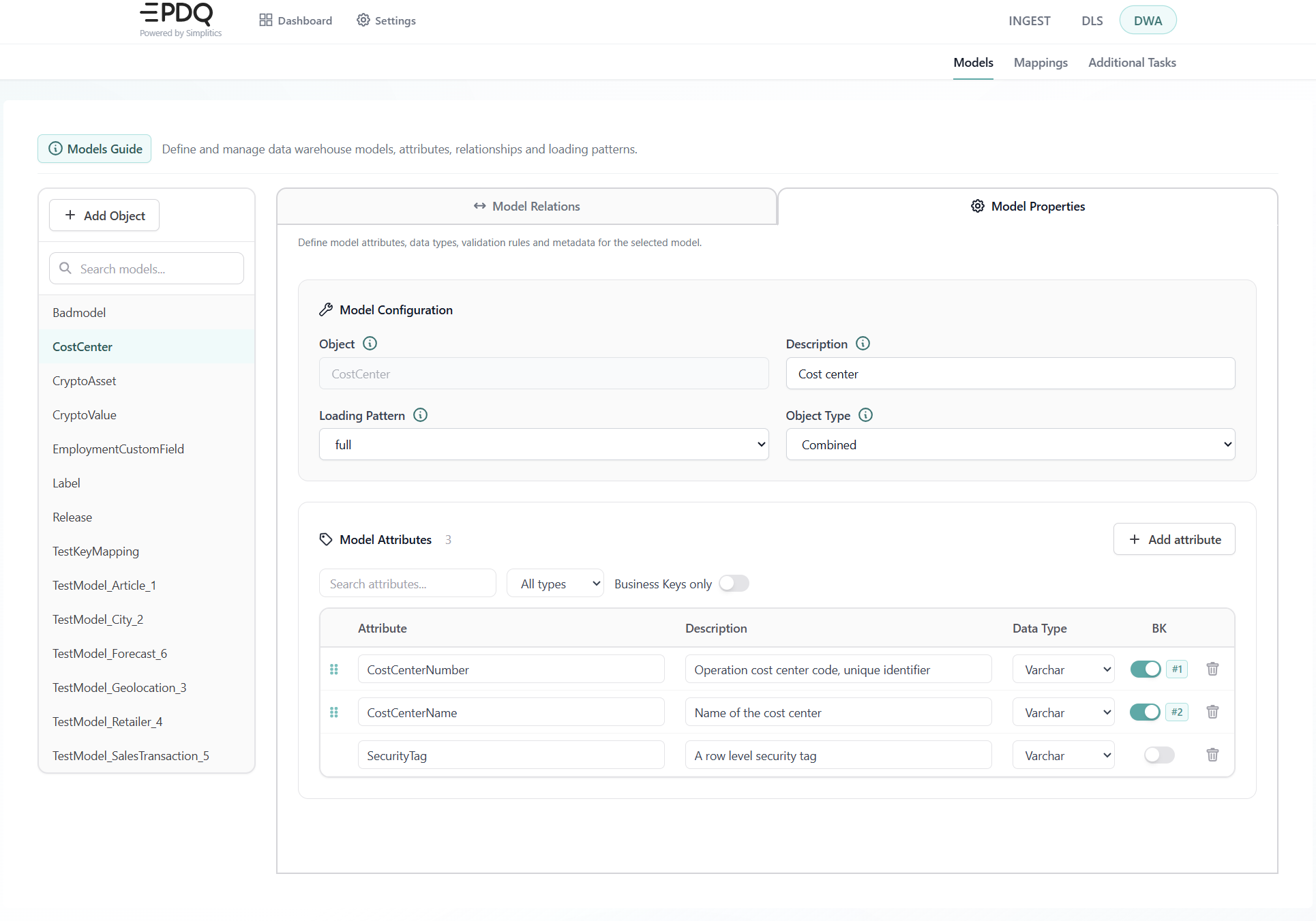
Model configuration
Object: The name of the model object — a specific entity or table in the data warehouse. It cannot be changed once the object exists.
Description: A brief description of the model object. Required.
Loading Pattern: How the object is loaded. One of transaction, dayspan, incremental, full or none.
Object Type: Specific or Combined.
Attributes
- Attribute — the unique name identifying this attribute within the model.
- Description — a brief explanation of what the attribute represents.
- Data Type — Varchar, Integer, Decimal, Boolean, Time, Date or Timestamp. An Other option accepts a custom type, and a non-standard saved value is detected and shown as such.
- BK — whether the attribute is part of the business key.
The Model Properties tab lists the object's attributes in a table with four columns:
Attribute rows can be dragged to reorder, and for business keys the order sets the business key priority — each business key row is numbered. A search box and a Business Keys only filter narrow a long list.
Attributes are added with the button below the list and removed with the trash icon on each row. Nothing takes effect until Save model is pressed.
Model relations
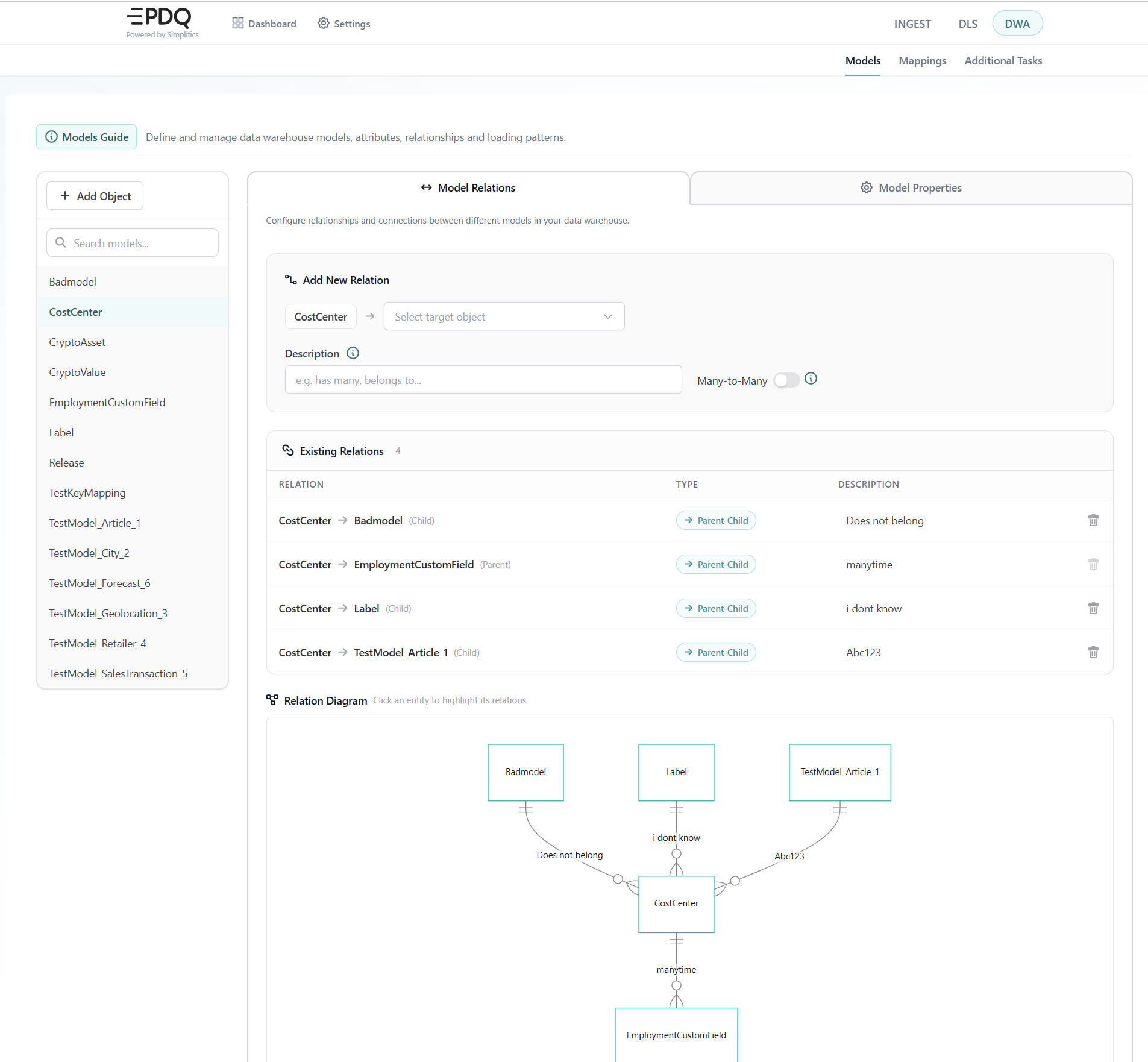
- Many-to-Many — enable the toggle.
- Parent-Child — leave the toggle off. This is the default, and the to object is the parent in the relationship.
The Model Relations tab manages how the selected object connects to the others.
Add a relation by choosing the To object from a searchable dropdown and giving it a description (for example "has many", "belongs to"). The Many-to-Many toggle decides the type:
Behind the toggle sits relationRole, which records which end this object is: parent,
child, or many in a many-to-many. It is not the relationship's description — the description
is a separate, free-text field. Left unset, relationRole defaults to parent-child.
Existing relations are listed below the form with their direction shown by an icon, an editable description, and a delete action. The Relation Diagram underneath draws the selected object together with everything it is related to; click an entity in the diagram to highlight its relations.
Visualising a model
- Full model ERD: Opens the entire Entity-Relationship Diagram in a modal, with a toggle for showing attributes.
- Object visualisation: Opens the selected model object together with the objects it relates to.
- Show SQL: Opens the SQL for the selected model.
What the model produces in the target database
The model is not only an input to the loading logic. It is also the source of the structure and documentation that end up in the target database, which is why it is worth filling in the parts that feel optional.
| What you set on the model | What the generator emits |
|---|---|
| The description on an object or attribute | A table or column COMMENT inside the generated CREATE TABLE (Snowflake and Databricks) |
| The business key | A unique constraint on the core table, and a primary key on the publish table |
| A relationship | A foreign key, child → parent, de-duplicated |
| The field classification carried from the source contract | A category tag, and a sensitivity tag plus, on platforms that support it, a column mask for fields flagged sensitive |
Constraint generation is on by default. An empty description is therefore not a cosmetic omission — it produces an undocumented column in the warehouse that no later step will fill in.
On the DWA → Mappings page (/mappings) you create and manage mapping groups, map source fields to model attributes, and configure the transformation rules that apply to each mapping.
Source-to-target mappings define the flow of processed data from the Published Data layer to the Integrated Core Concept Model (Integrated layer). The DWA generates SQL code and loading orchestration by receiving model descriptions and source-to-target data mapping (LOGIC), which are stored in the Active Metadata Engine (AME).
Prerequisites
Before creating the mappings, the following stages in the Simplitics architecture must be complete:
- Data Ingestion and Publishing: Data must have been processed by the Data Lake Service (DLS) and published into the Published storage layer. The Published layer provides selected table format for the agreed source delivery, facilitating SQL-based data access.
- Source Definitions: Source definitions and data structure (the data contract/metadata) are created by DLS.
- Integrated Model Definition: The Integrated core business concept model must be defined. This model uses an ensemble data modelling methodology and its definition includes object names, keys, descriptions, data types, and relationships. This definition is typically done on the Models page.
- Target Table Deployment: The physical target tables for the Integrated Model (the Ensemble/Intermediate model and the Core/Enterprise model) must be generated using the SQL Generator API or CI/CD tool, and deployed to the target database.
Mapping a source to a model
When mapping models from source data, it is essential to first model the business key before modelling the attributes. Without a key mapping, the loading process will not work. A mapping must contain at least one key mapping and one attribute mapping; otherwise, nothing can be loaded.
The UI now checks this for you: if a business key is left unmapped, a dialog names exactly what is missing ("Nothing is mapped to Release.ReleaseId yet"), explains what a business key is, and lets you pick the source field and press Map and save without leaving the page. It also deep-links to the model in question, with a Back to mappings link that restores the system, source file and group you came from.
Step-by-step:
- Navigate to the Mappings page in the Config UI.
- Select the system in the sidebar, then the Source (the source file representing the Published Data), the Mapping Group, and the Model.
- Create a Mapping Group if none exists. A mapping group represents a logical "Unit of Work" and is a collection of mappings from one source file to one or more target models.
- Map the Business Keys first, then map the Attributes.
Keys
Map your unique source data to the corresponding business keys in the model. The order of the mappings is not important, as the engine will automatically sort them based on the modelled information. This ensures that your data is accurately aligned with the business model.
If a model object has a composite key, all key values must be mapped completely for the object loading to occur.
Attributes
Map each source attribute to the corresponding model attribute, one by one. The mapping group shares the key mapping definition, meaning all attributes loaded within that group share the same key mapping logic. This step ensures that each piece of data from your source is accurately aligned with the appropriate attribute in your model.
Relationships
Relationships are automatically detected when a single source file maps to the business keys of both model objects, provided the relationship is defined and exists in the model. Relationships are defined in the target model, not explicitly in the loading program.
While it might seem necessary to manually model a relationship, the system will automatically establish it as long as the source file can load both keys. It is essential that the complete business key is populated for both model objects in the relationship. If this condition is not met, the source will create a relationship but also generate a "false" business key, resulting in no related data.
Working with Mapping Groups
- Select a Source and a Source File: Start by choosing the source and the specific source file you intend to work with. This step ensures that you are working with the correct data set.
- Create a Mapping Group: A mapping group needs a name and a description; both are required. Existing groups can be renamed and re-described from the same dialog.
What is a Mapping Group?
A mapping group is a collection of mappings from a source to one or more target models. It represents a logical unit of work, characterized by a shared key mapping definition, consistent sort orders, and common filters. This structure ensures that related mappings are organised and managed together, facilitating efficient data integration and processing.
When Do I Need Multiple Mapping Groups?
You may need multiple mapping groups in the following scenarios:
- Different Columns to the Same Target Attribute: If you need to map two different columns from one source to a single target model attribute, you must create two different mapping groups.
- Filtered Source to Different Targets: If you want to map part of the source with a filter to one target model and another part of the source to a different target model, you will need two mapping groups. For example, if the source contains customers, but you wish to divide them into business customers and consumer customers.
The Object Mapper
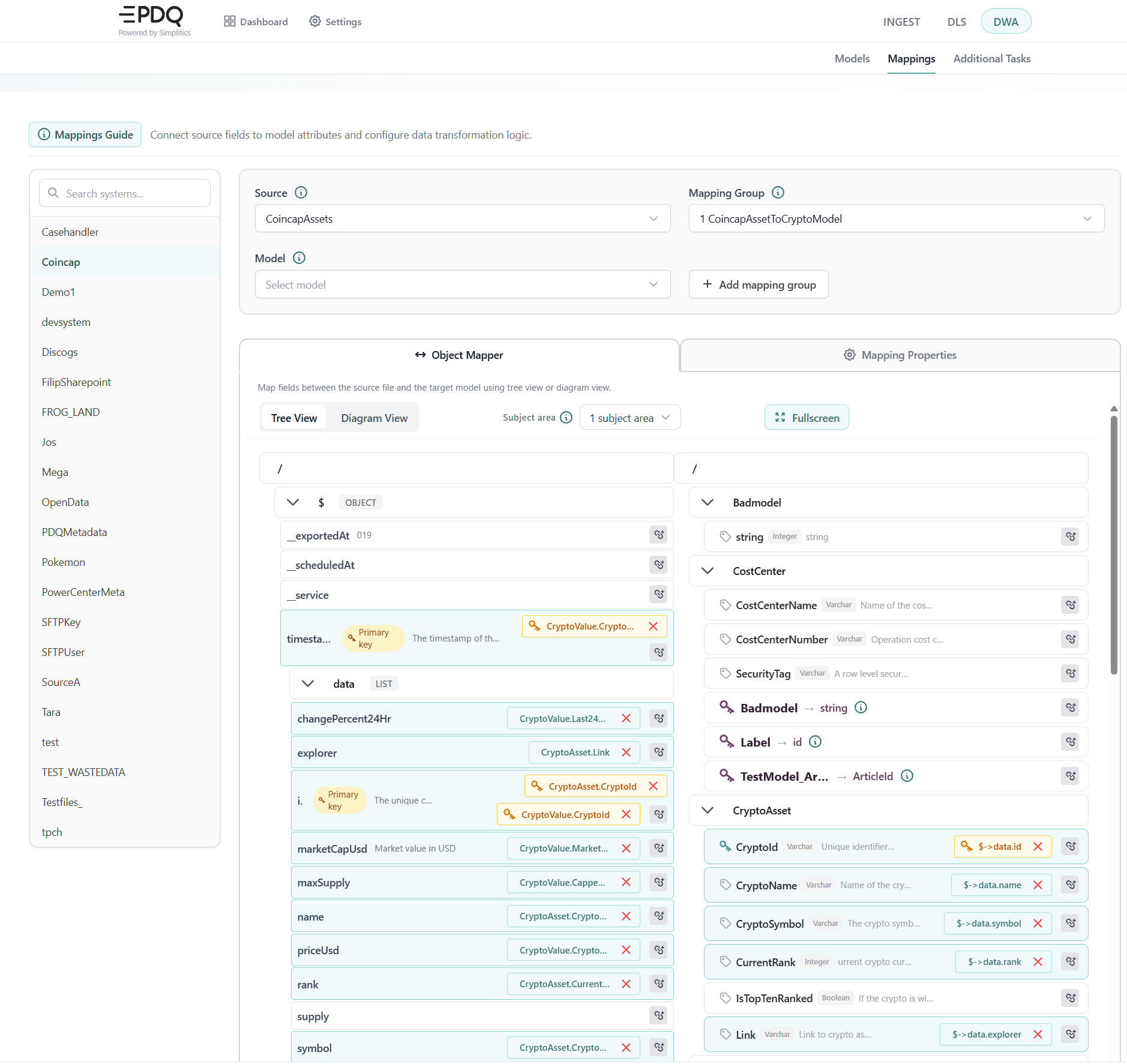
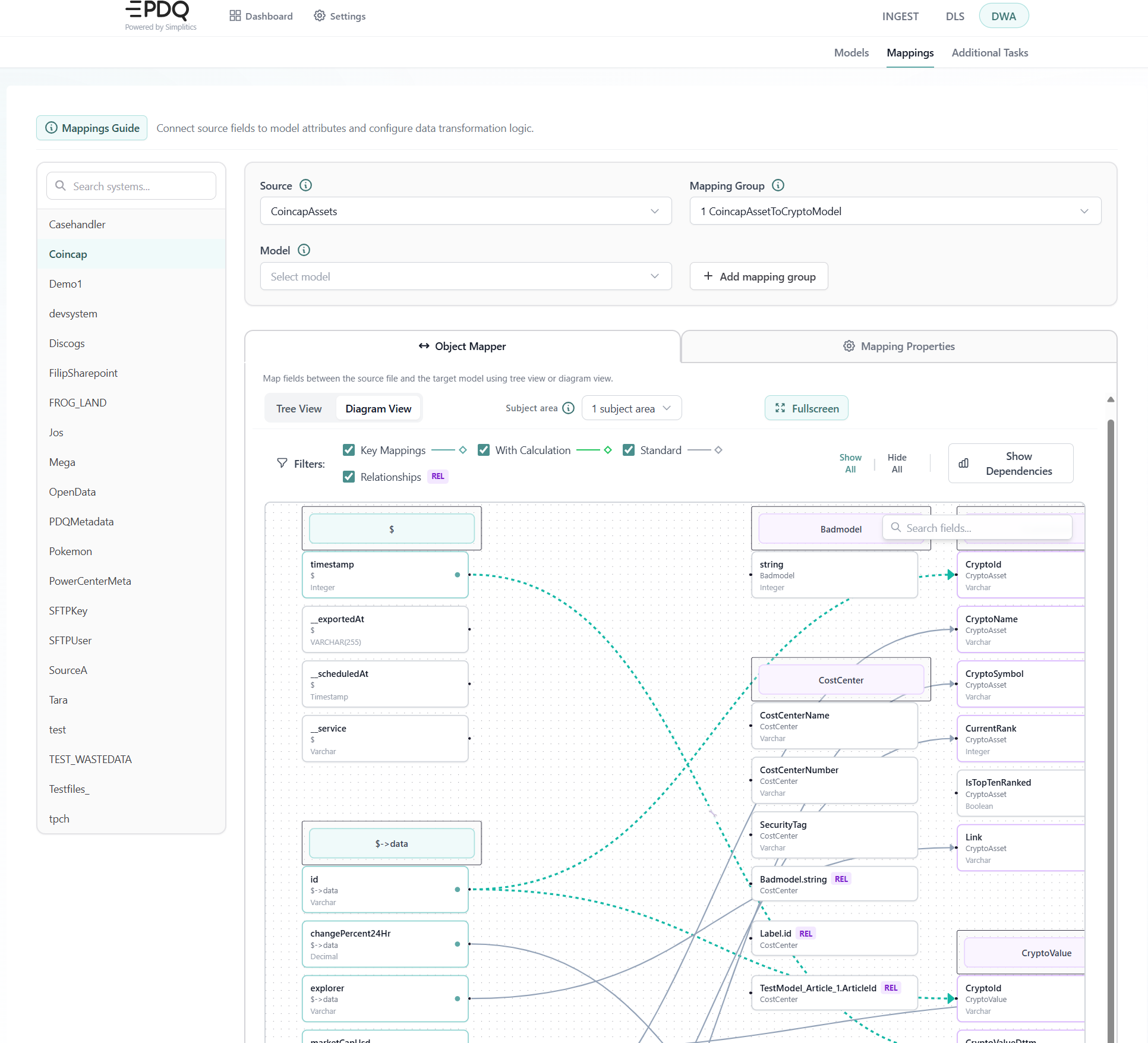
The Object Mapper tab is where source fields are connected to model attributes. It has two view modes, switched with a toggle:
- Diagram view (the default) renders source fields and target attributes as a graph. Mappings are created and deleted by dragging between nodes, edges highlight on hover, and the diagram can be exported as an image.
- Tree view shows the source structure and the target model side by side. Clicking a source field and then a target attribute creates the mapping; the chain-link icon with a line through it removes one. An optional mapping lines overlay draws the connections across the two trees.
Both views offer search, a subject area filter that narrows the target models to a chosen area, and a show only mapped toggle. A Fullscreen button opens the same mapper in a modal, preserving the current view mode.
Green highlights indicate connected fields. Creating or deleting a mapping reports back in the toolbar status line rather than opening a dialog, and the mappings are available to the engine as soon as they are saved.
Mapping properties and advanced logic
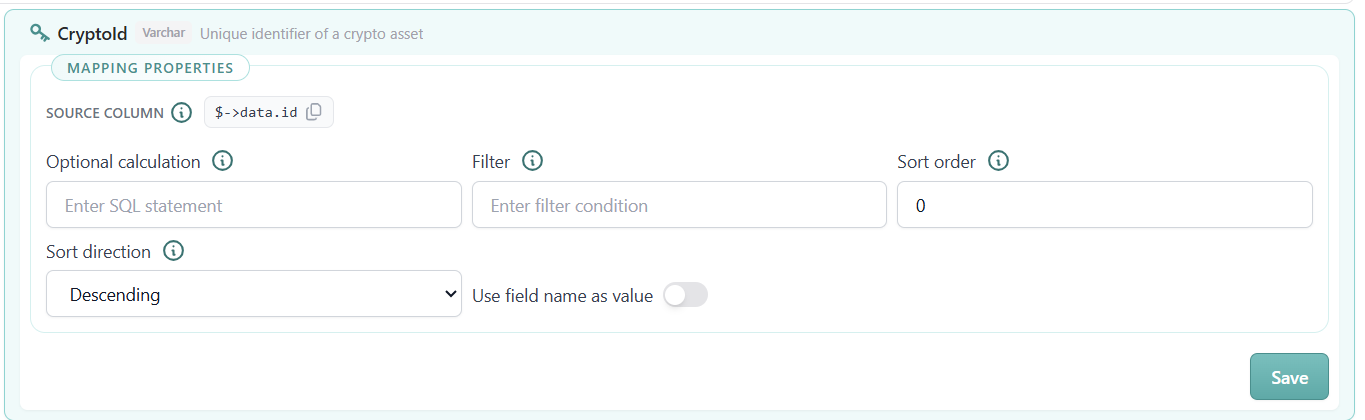
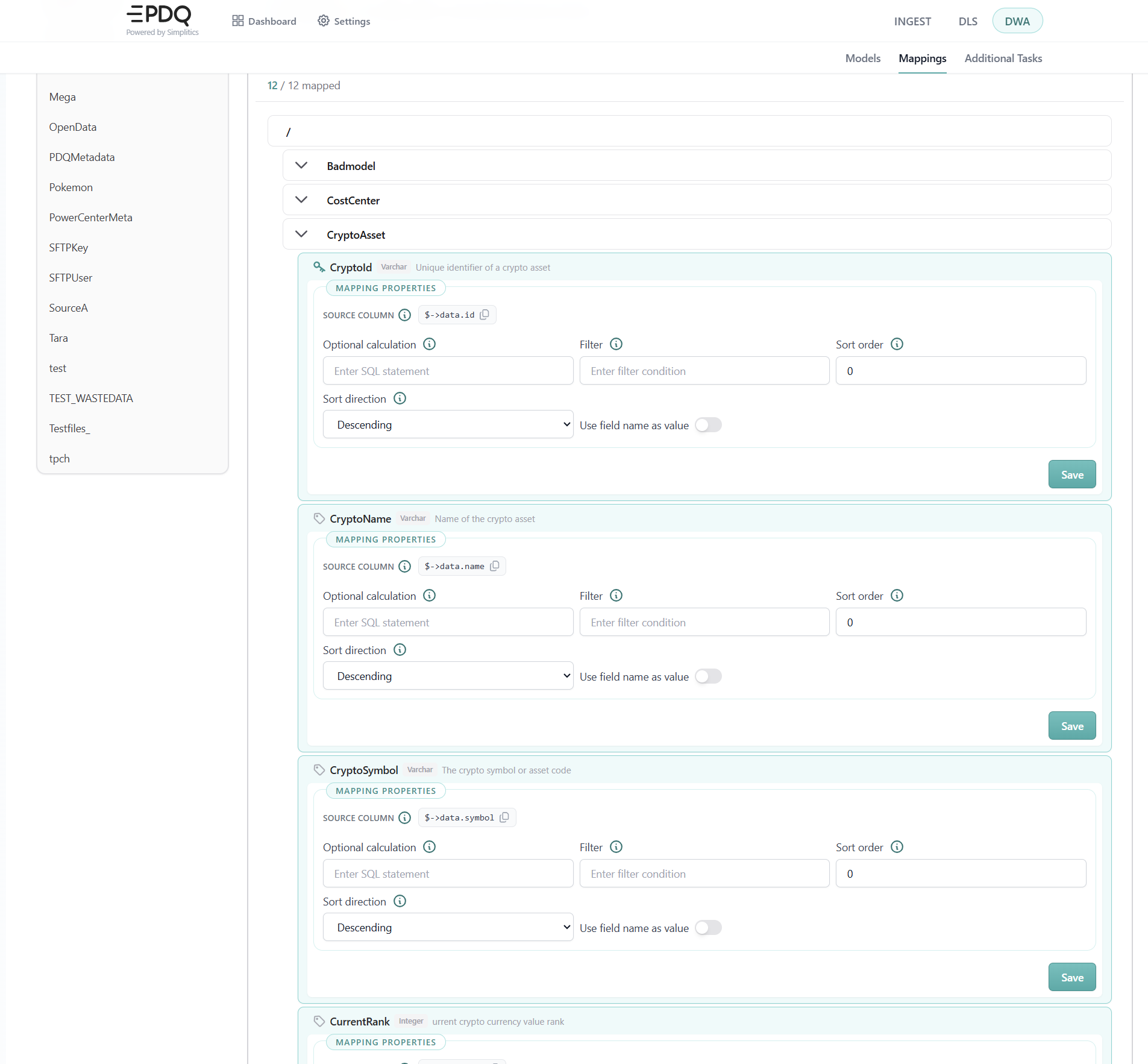
The Mapping Properties tab configures the transformation rules for each mapped attribute, alongside the read-only source column the mapping resolves to. These settings used to be reachable only through the API or a source-code view; they are now editable directly in the UI. Each attribute has its own Save button.
The full tab lists every attribute of every model in the mapping group, with a mapped counter at the top:
Optional calculation (optionalCalculation)
Column-level calculations transform data during the load. Write plain SQL for a single column operation — the part you would put after SELECT. It is dialect-sensitive and may not be portable between database platforms.
The syntax requires the source fieldKey in a case-sensitive form, which the engine replaces with the functional code for the actual source field. This is not the same as the value shown in the attribute source: use only the last segment after the dot. The panel shows the mapped source column (levelPath.FieldKey) with a copy button so you can lift the right name straight out of it.
Filter (filter)
Written as a condition in SQL syntax — the part that would follow the column name in a WHERE clause. To filter out nulls you write IS NOT NULL, not WHERE ColumnName IS NOT NULL; the rest of the statement is generated. The condition applies to a single column and is bound to the source specified in the mapping object you are editing, so each additional condition is added to the appropriate mapping object.
Filters apply to all attributes and relationships within the same mapping group. If a source contains two types of transactions that belong in different concept models, create two mapping groups, each with its own filter on the type column.
Sort order and sort direction (sortOrder)
Sorting is what lets the load track versions of incoming data and keep only the latest record for a business key. The Sort order field is the priority when several fields take part in the sort, and the Sort direction dropdown chooses ascending or descending. The two are stored in one signed value: a positive number means descending, a negative number means ascending — 1 is the first field in descending order, -2 the second in ascending order.
Sorting only works when the sorting columns are also attributes in the target model object, so add them there first.
Use field name as value (useFieldNameAsValue)
Loads the field's own name as the value rather than its contents. Useful for role or type markers that are implied by the source structure rather than carried in the data.
Orphaned mappings
Mappings whose target attribute or model was renamed or removed are listed in an amber banner at the top of the tab, each with a Remove button. They are hidden from the tree itself, so without the banner they could be neither seen nor cleaned up.
Case sensitivity and naming conventions
The DWA loads data based on configurations derived from the DLS metadata.
- The attributes
fieldKeyandpathused in the source metadata (created by DLS) are case sensitive and must match the source files exactly. - If a different naming convention is desired for the target tables (e.g. in the Published or Core zones), this is managed using the
fieldAliasandlevelAliasattributes in the source file structure definition. These aliases are then processed by the SQL generator according to global settings (likecolumnPrefixortableNameCasing).
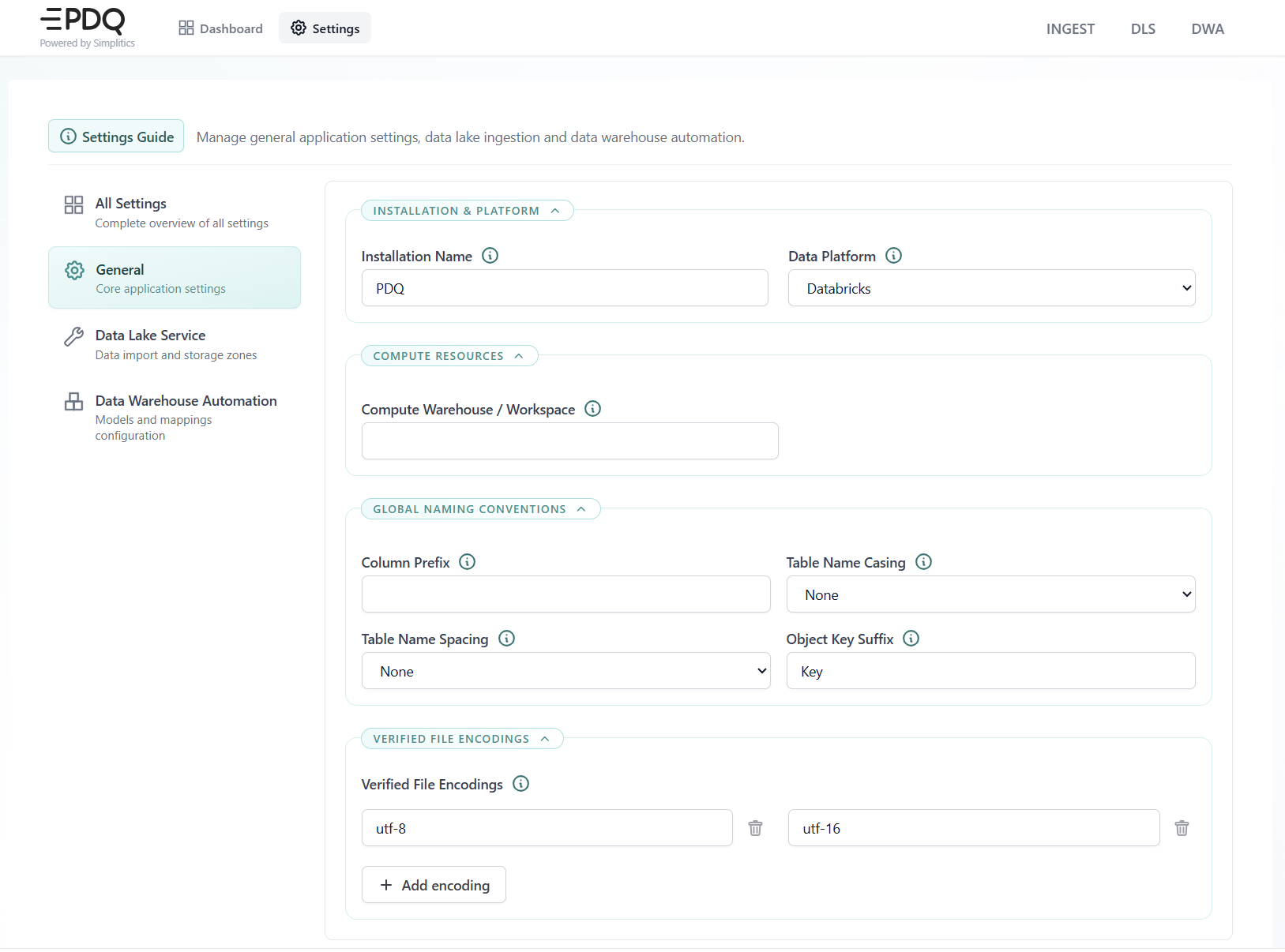
The global settings referenced here live under Settings → General, in the Global naming conventions section. They apply to every generated object, so set them before generating target tables.
Advanced Mapping Scenarios and Techniques
Source mapping requirements that constrain the target model
A common issue is that it is possible to have a well-modelled information model, but the source may not be able to accurately populate the business keys of a relationship. When this is the case, special modelling workarounds have to be taken into consideration.
Relating two different sources that use technical keys
When the source only uses technical keys, and we need to relate two different sources, we typically have one source file with the technical key and another source file with the key available in the second source file. The solution is to create a second model object, named something like Object_Natural_Id or Object_Alternative_Key. Then, model the business key that appears across the technical boundary and relate it to the single source object. Source that model object from the source file containing both keys. Create a relationship to the new model object instead of the original model object. This trick can be applied repeatedly and allows for a generic construct that can hold multiple identities for a single object and relate to it from many different sources. The downside is that the model becomes a bit scattered and harder to use in downstream processes.
Role-playing columns: one model object, several source columns
Sometimes, we need to relate different source columns to another object with some form of role play. This is not supported in the current version due to strict naming conventions and the lack of a generic way to describe various roles. However, it can still be done! For instance, let's say we have an address model object, and our customer model object has both a postal address and an invoice address that we need to source and model.
One way to achieve this is to create two new model objects, Postal Address and Invoice Address, and relate these to the Customer model and the Address table, respectively. They do not need to have any attributes if you do not wish them to. The engine will understand this and load the relationships accurately.
Another way is to create a single "many-to-many" model object, Address Role, and create a composite key of the address business key together with the role, which will need to exist in the source or be created in the mapping itself.
Keeping only the latest record when a key has several versions
If we have multiple versions of the same model business key in the source and need to keep only the latest record, we need to introduce sorting. Sorting only works when the sorting column(s) are also available in the target object. This means that we need to add attributes for these columns in each model object where sorting is to be applied. Set the sort order and direction per attribute in the Mapping Properties tab.
On the DWA → Additional Tasks page (/additional-tasks) you define extra processing steps that run as part of the pipeline around the generated loads. Tasks are listed in a searchable sidebar, and each one carries four settings.
Task settings
- Post-processing — runs after data has been loaded into the data warehouse, for example data quality checks, aggregations or notifications.
- Datamart — runs as part of datamart builds, for example materialised views or report datasets.
Name: The task name, unique within the environment. Required.
Type: Where in the pipeline the task runs.
Sort Order: An integer deciding the order in which tasks of the same type run.
Dependencies: Other tasks that must complete before this one starts, chosen from the list of existing tasks.
Run Command: The actual command or script to execute. Required.
Dependencies versus sort order
The two settings answer different questions, and they are easy to confuse.
- Dependencies wait for a flow: this task does not start until the tasks it names have completed. Use it to hang work off the end of a source flow.
- Sort order decides the order within one run, among tasks of the same type that are all ready to go. It is a tie-break, not a dependency.
A task with no dependencies and a high sort order still runs early if nothing else is ready.
QPI checks on the same flow
QPI is the framework's data quality engine. It reports; it does not block, and it cannot stop downstream work. Its checks are SQL controls run against data in DWA, and they can be placed on:
- Published
- Core (Integrated)
- DM (Business)
A QPI check is free-standing, and the orchestration can trigger it the same way it triggers an Additional Task: after Additional Tasks, when the source flows it depends on are complete, or chained one after another. Several checks can be scheduled in sequence.
QPI checks are created and administered in the DataOps Console, under QPI Monitor and QPI Administration — see Data quality.
DWA
Runs as several containers (minimum 4). Built using Docker. Python 3.12 on Debian 12. Code is hosted in Bitbucket, and containers are published on Docker Hub. It can run in any container-based environment; the same region as the database is preferable, but not a requirement.
It generates SQL code from templates for a given database, takes JSON-based configuration as input, and either writes the SQL to disk for a separate management process or runs the ELT in the database.
Python Requirements.txt
requestspyodbcredissqlalchemypandaspytzpyyamlpydanticdockerboto3asn1cryptoazure-commonazure-identityazure-storage-blobazure-storage-commonazure-mgmt-resourceazure-mgmt-datalake-storeazure-datalake-storeazure-storage-queueazure-storage-file-datalakefastapisqlparseuvicorngunicorncryptographytzlocalsixtyping_extensionssentry_sdkpython-multipart
Deployment and Execution
- Can be run on any container-based environment, should preferably be in the same region as the database, but that is not a requirement.
- Generates SQL code based on templates for a given database. It uses configuration (JSON-based) as input and pushes SQL either to disk for a separate management process, or runs ELT in the database.